🚀 Quick Start – BakeKit
Welcome to BakeKit! This quick start guide will help you get up and running in minutes.
This guide assumes you've already downloaded or cloned BakeKit from GitHub and have it running in a local development environment.
🧰 Site Management Panel
Once launched, you’ll see a clean dashboard. All features in BakeKit are plugin-based, so nothing is enabled by default.
There are two predefined menus:
- Plugins menu – For menu populated with plugin links (Pages, Blog, etc.)
- Custom menu – For menu with custom links
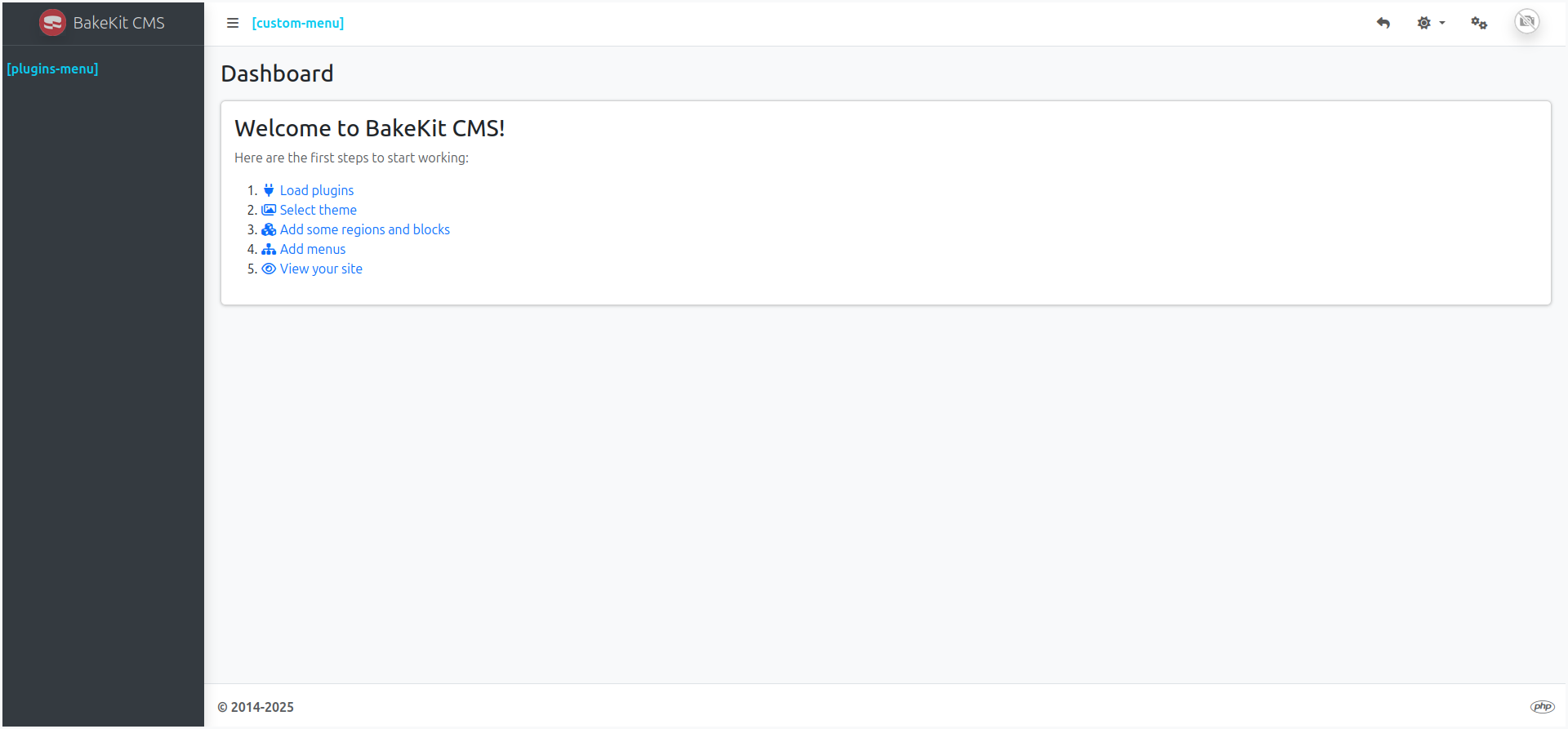
To begin configuring your site, click the ⚙️ cogs icon in the top-right corner of the dashboard to access the Site Management Panel, where you can:
- Manage Plugins, Themes, Menus, Roles, Users, Meta, and Settings
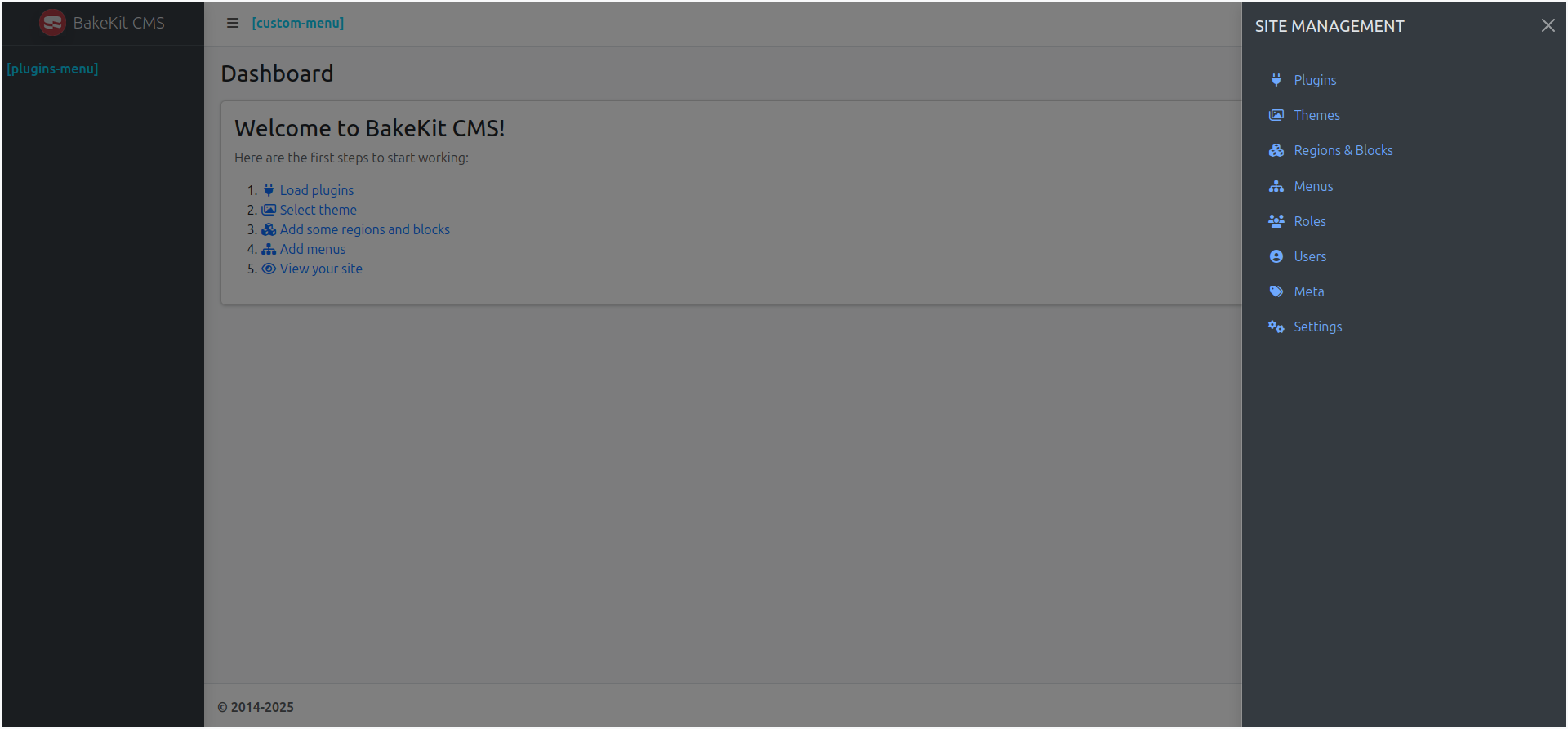
🧩 1. Load a Plugin
To enable features like static pages, blog posts, or slideshows, you need to install and activate plugins.
👉 Tip: Start by installing the FileManager plugin — it’s required by other plugins for image handling.
Install via Git:
git clone https://github.com/bakewizard/FileManager.git
zip -r FileManager.zip FileManager
rm -rf FileManager
- Go to the Plugins page and click Browse.
- Upload the FileManager.zip file.
- Click Install, then Activate.
🧭 2. Edit a Menu Item
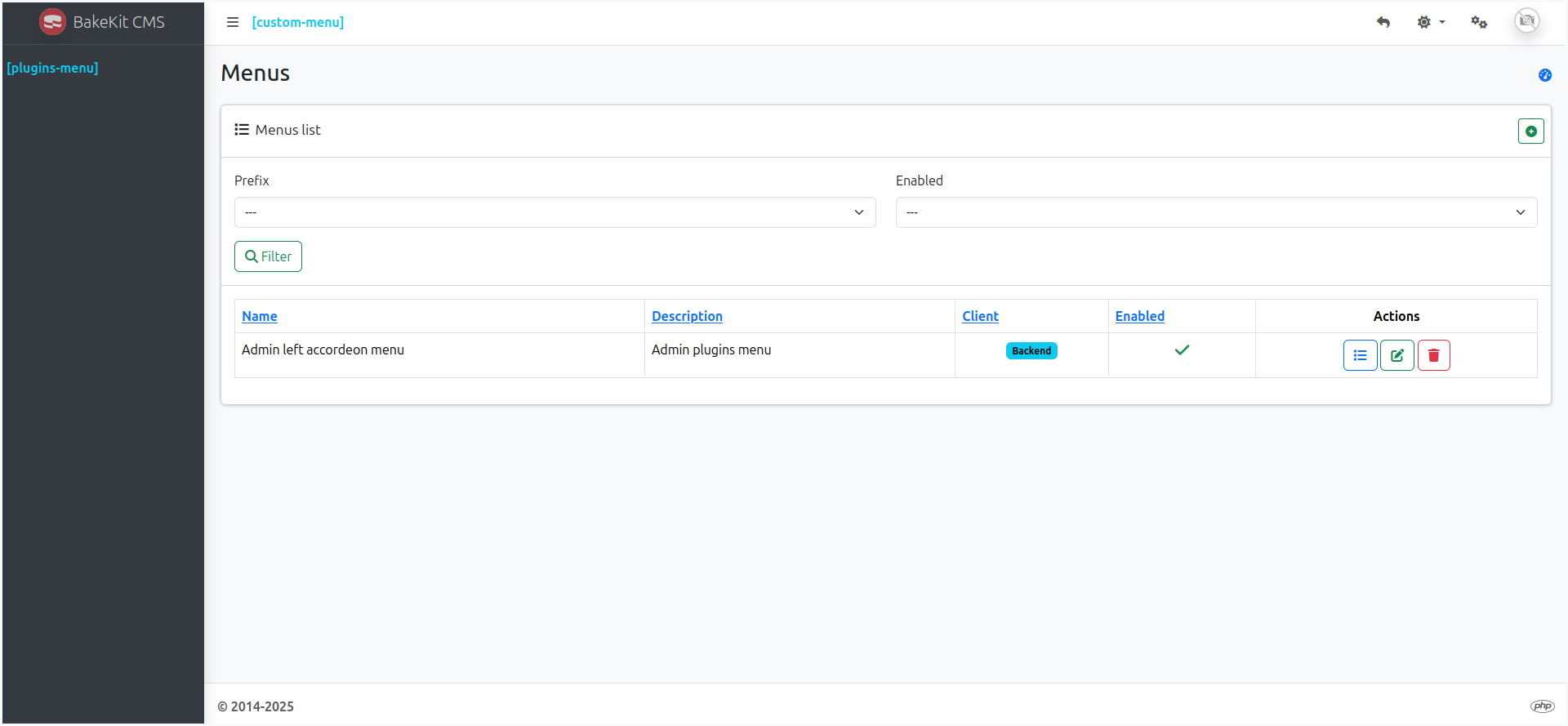
- Navigate to the Menus page.
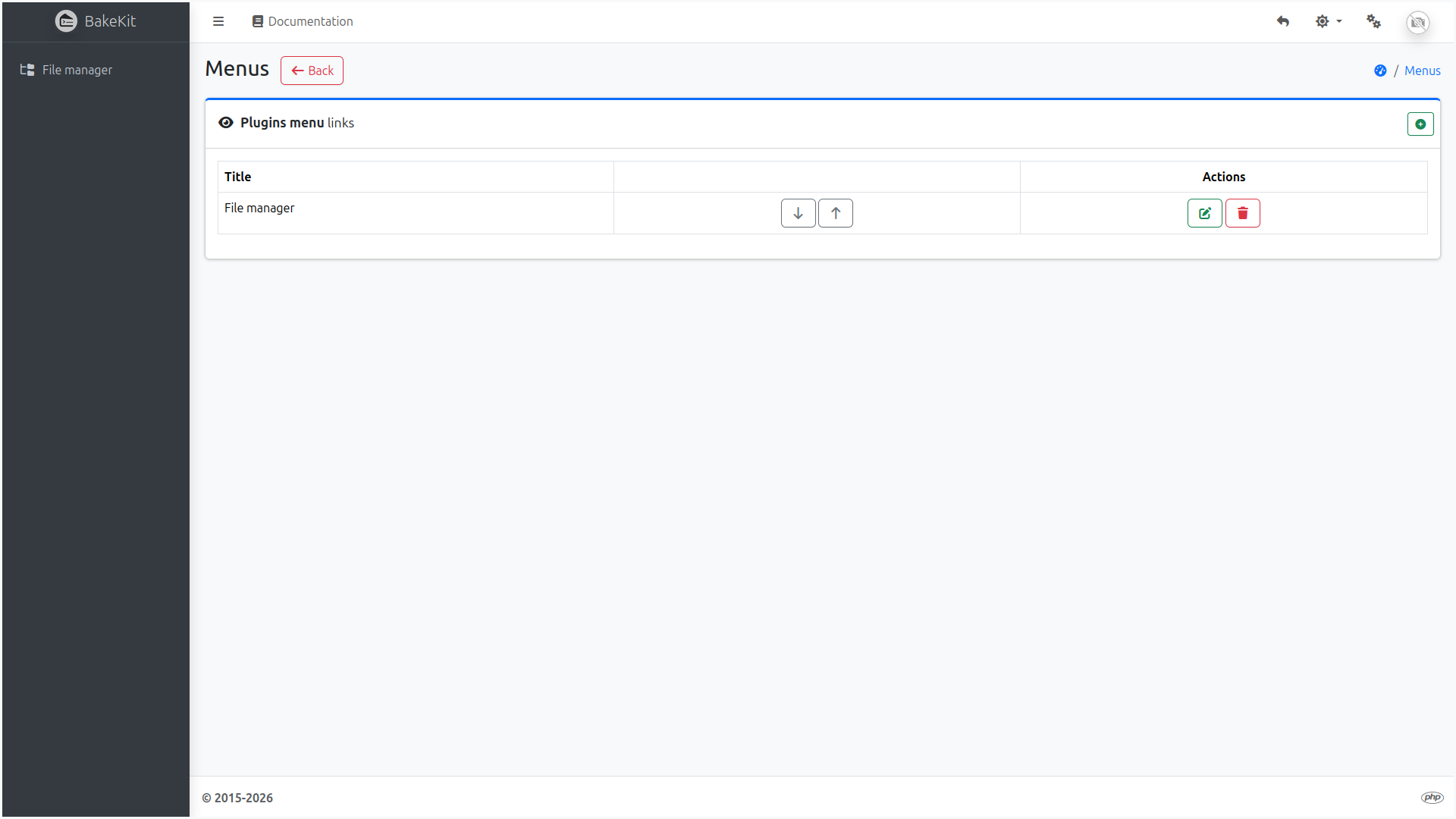
- In the Actions column of Plugins menu, click the first button to manage menu links.
- Click the 📝 icon to edit the first link.
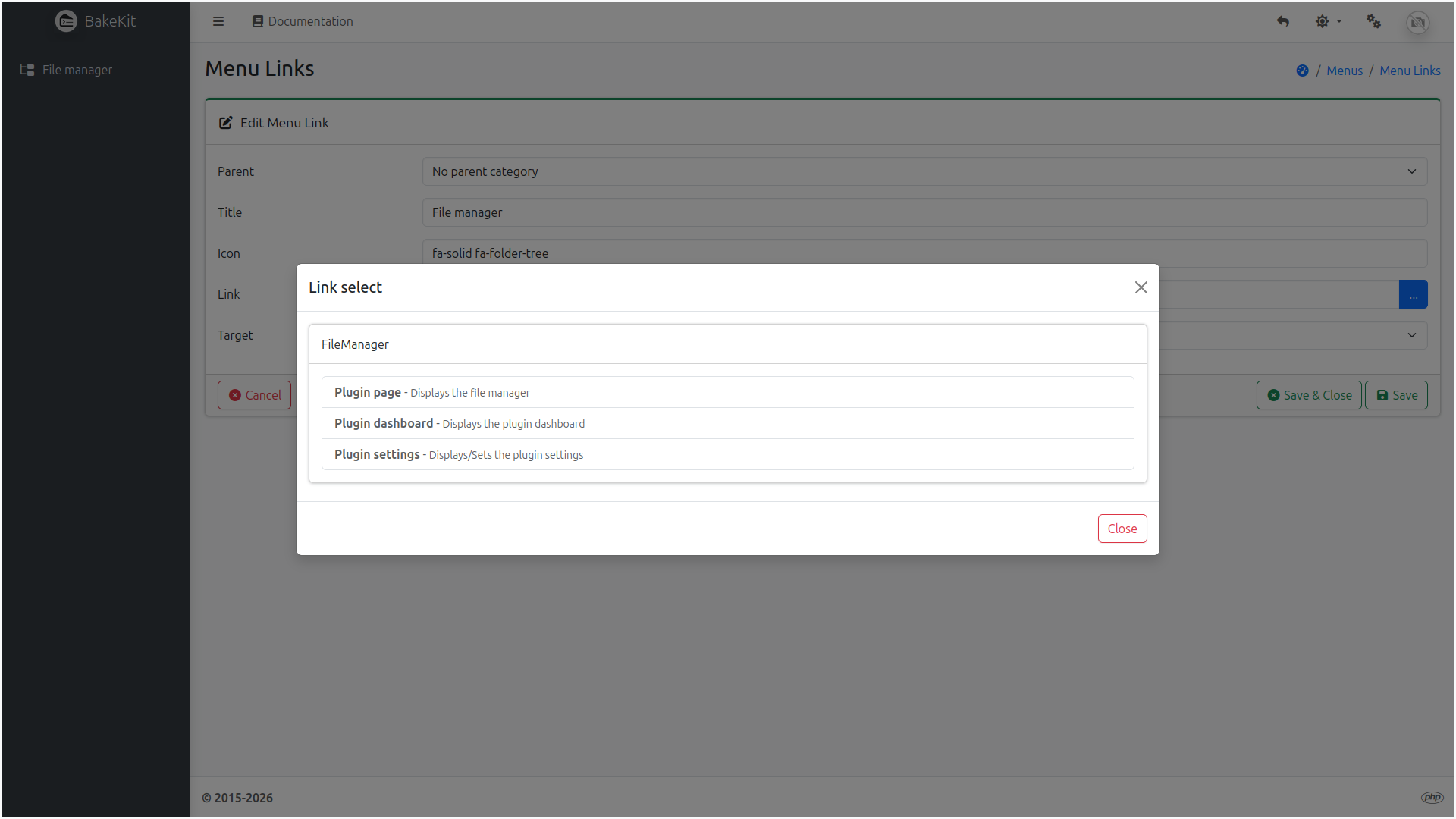
- Click the Link button and choose Plugin page from the accordion FileManager tab.
- Click Save & Close.
📦 3. Load a Theme
To install and activate a new theme:
- Go to the Themes page.
- Click Browse and select the theme
.zipfile. - Click Install, then Activate.
🛠️ Next Steps
BakeKit is now set up!
You can now: